DonorAtlas for Salesforce — User Manual
Last Updated: March 2026 · Package Version: 1.2
1. Introduction
DonorAtlas for Salesforce brings donor prospect research directly into your CRM. When a Contact, Lead, or Account (Person Account) is synced with DonorAtlas, the integration matches that person against the DonorAtlas database and writes back a rich Donor record containing wealth estimates, giving history, education, employment, board affiliations, private foundation connections, and more — all viewable and reportable right inside Salesforce.
This manual is for day-to-day users of the integration. It assumes your Salesforce administrator has already installed the DonorAtlas package and added the components to your record pages. If you don't see the DonorAtlas component on your Contact, Lead, Account, or Campaign pages, ask your admin to follow the setup steps in the Technical Administration Guide.
Permission Levels
Your experience with DonorAtlas depends on which permission set your admin has assigned to you. There are three levels:
| Permission Set | What You Can Do |
|---|---|
| Admin | Sync, resync, and unsync records. Bulk sync from list views and campaigns. View all donor data. Configure field mappings. |
| User | Sync, resync, and unsync records. Bulk sync from list views and campaigns. View all donor data. |
| Viewer | View donor data and reports. Cannot sync, resync, or unsync records. |
If you have the Viewer permission set, you can browse Donor records, explore child records, and build reports on DonorAtlas data — but the sync controls described in Sections 4–6 and 8 won't be available to you.
If you're not sure which permission set you have, try navigating to a Contact record page. If (after logging in) the DonorAtlas component shows a “Sync with DonorAtlas” button or a “Re-sync”, you have User or Admin permissions. If you see donor data but no sync controls, you have Viewer permissions.
2. Getting Started
Prerequisites
Before you begin, make sure the following are in place:
- A DonorAtlas account. If you don't have one, contact your DonorAtlas account administrator.
- A DonorAtlas permission set assigned by your Salesforce admin. See the permission levels table above.
- The DonorAtlas component on your record pages. The DonorAtlas component should appear on your Contact, Lead, Account (Person Account), and Campaign record pages. If it's missing, ask your admin to add it via Lightning App Builder (see the Technical Administration Guide).
Where to Find Things
| What You're Looking For | Where to Find It |
|---|---|
| Sync component (single record) | Contact, Lead, or Account (Person Account) record page — look for the DonorAtlas-branded panel |
| Bulk sync button | Contact, Lead, or Account list view toolbar — "Sync with DonorAtlas" button |
| Campaign sync component | Campaign record page — look for the DonorAtlas-branded panel |
| Donor record (enriched data) | Click the "View Record" button in the DonorAtlas component |
| Report types | Reports tab → New Report → search for "Donor" |
| Example reports | Reports tab → DonorAtlas Example Reports folder |
| Field mapping configuration | App Launcher → DonorAtlas Configuration (Admin only) |
3. Logging In
Each user who wants to sync records (or see the status of a sync) must connect their DonorAtlas account once. This is a one-time setup that takes less than a minute. (Note that non-DonorAtlas users can still view the underlying DonorAtlas records in Salesforce, run reports, etc.)
How to Log In
- Navigate to any Contact, Lead, or Account (Person Account) record page.
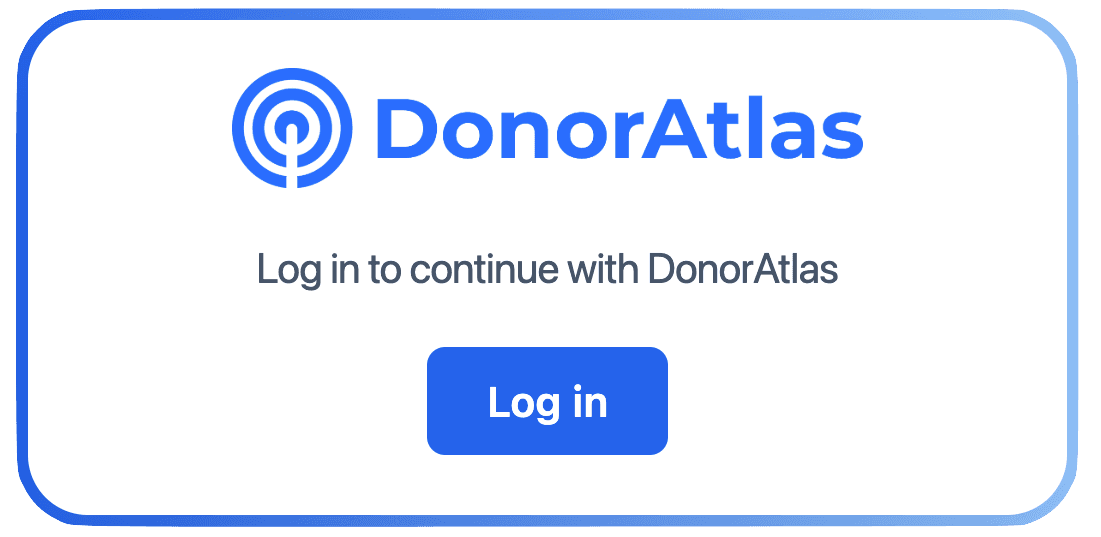
- In the DonorAtlas component, click “Log In.”
- A new browser tab opens and takes you to DonorAtlas. Sign in with your DonorAtlas credentials.
- DonorAtlas will ask you to authorize access to your Salesforce org. Click Allow.
- Once complete, you'll see a confirmation. Return to Salesforce.
- The DonorAtlas component now shows the sync status, and sync controls if you have User or Admin permissions.
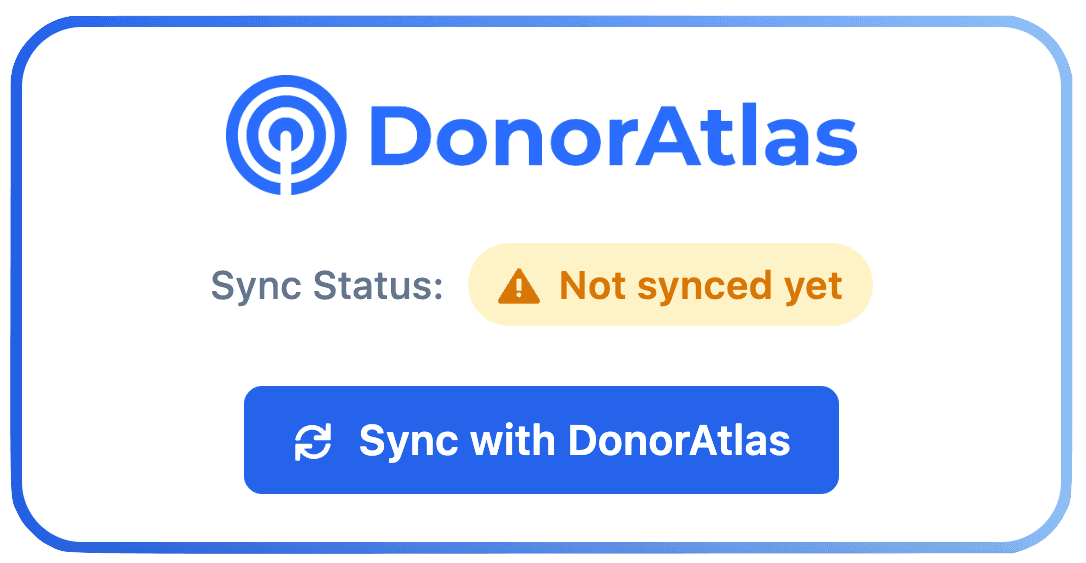
Your session persists across Salesforce, so you won't need to log in again unless your session expires. If you ever see the “Log In” button again, simply repeat these steps.
4. Syncing a Single Record
Syncing is the core action of the integration. When you sync a Contact, Lead, or Account (Person Account), DonorAtlas matches that person against its database and — if a match is found — creates a Donor record in Salesforce with enriched research data.
How to Sync
- Navigate to a Contact, Lead, or Account (Person Account) record page.
- In the DonorAtlas component, click “Sync with DonorAtlas.”
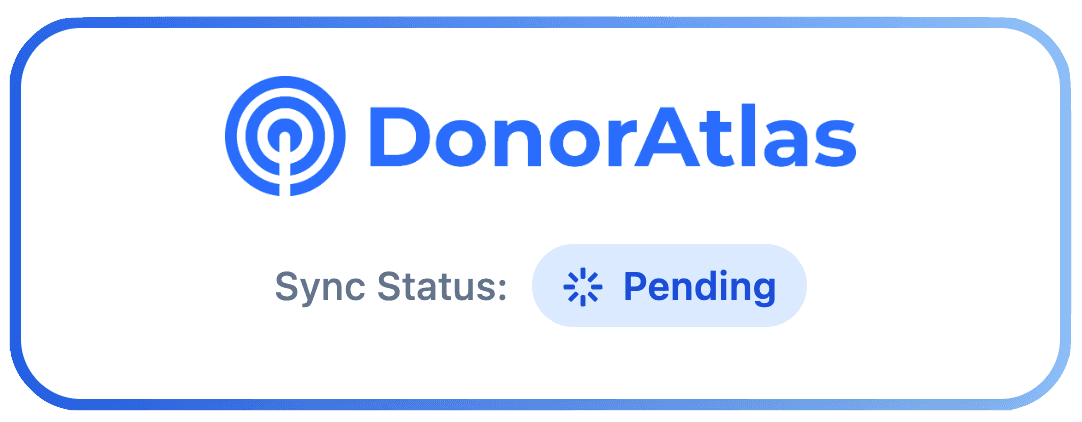
- The component shows a “Pending” status while DonorAtlas processes the request. This typically takes a few minutes.
- When processing finishes, you'll see one of two outcomes:
- Synced — A match was found. The component displays a green “Synced” badge, a link to the full DonorAtlas profile, and a button to view the Donor record in Salesforce.
- No Match — DonorAtlas could not find a matching donor. The component displays a gray “No match found” message.
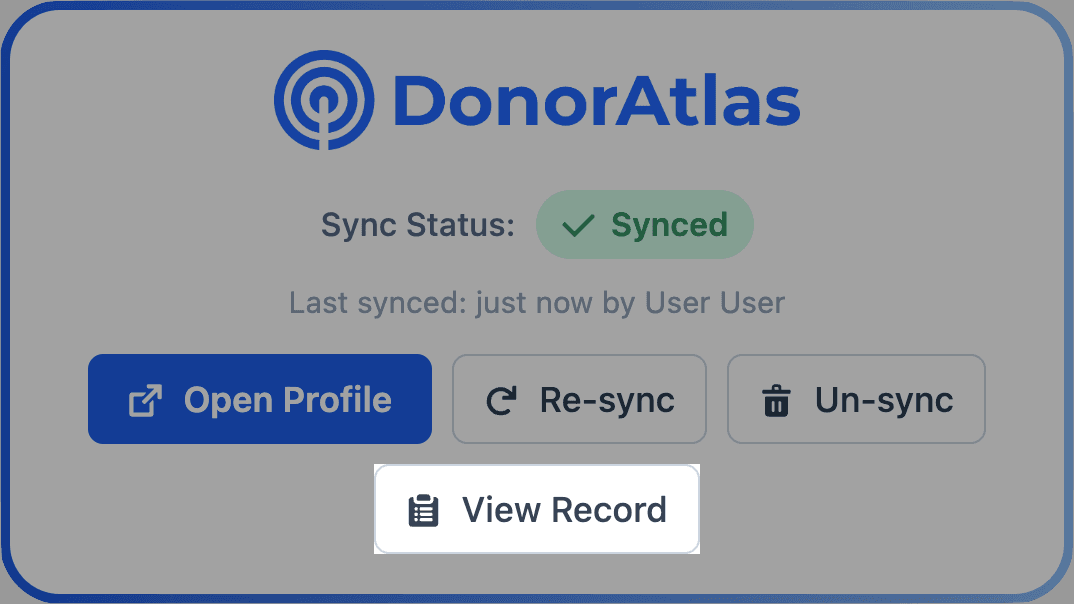
The component automatically checks for updates while you stay on the page, so you don't need to manually refresh. If you navigate away and come back, the component will show the current status.
5. Bulk Syncing from List Views
You can sync multiple Contacts, Leads, or Accounts (Person Accounts) at once directly from a Salesforce list view. This is useful when you want to screen a segment of your database — for example, all Contacts in a specific state or all Leads from a recent event.
How to Bulk Sync
- Navigate to the Contacts, Leads, or Accounts tab and choose a list view (or create a new one filtered to the records you want to screen).
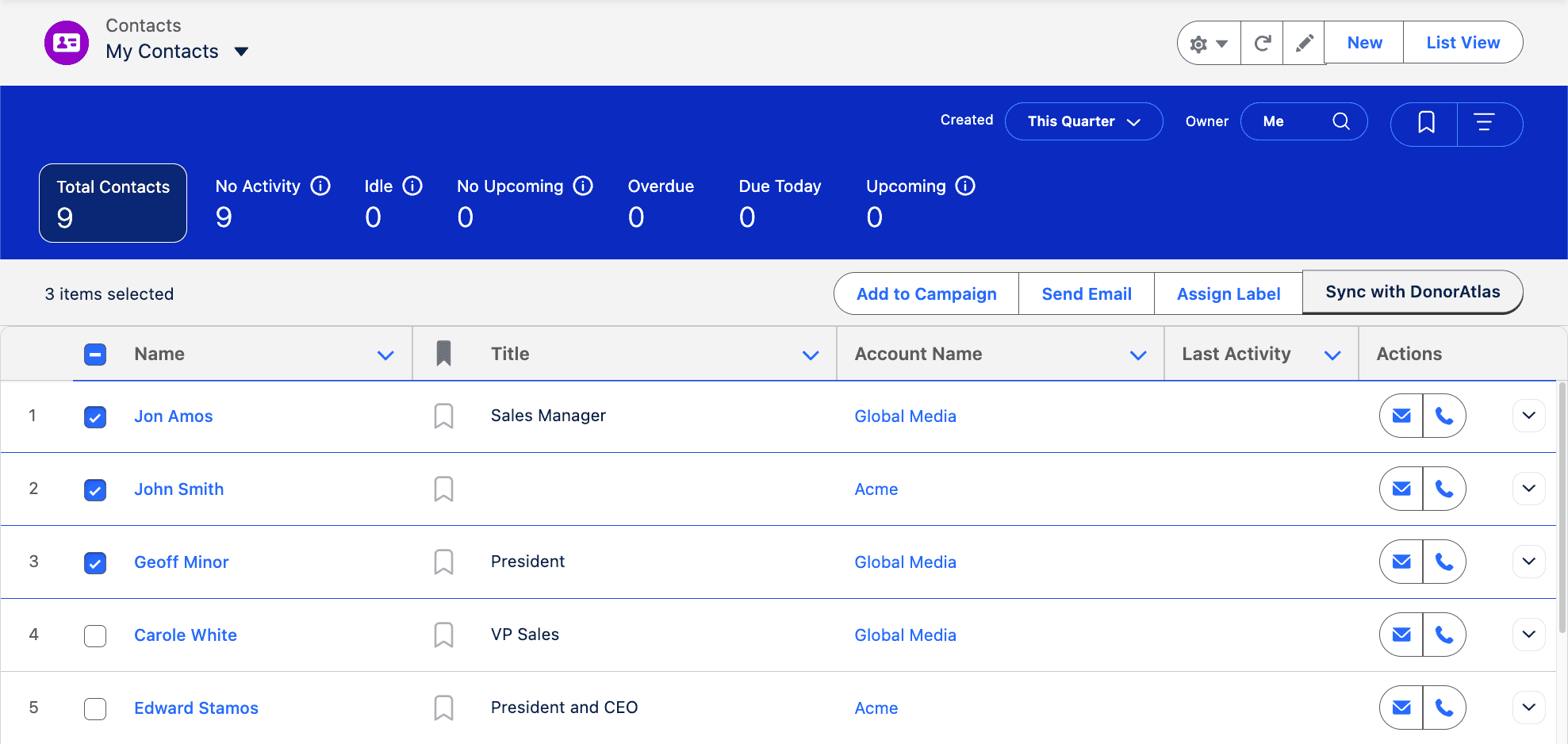
- Select the records you want to sync using the checkboxes. Click the checkbox in the header row to select all visible records.
- Click the “Sync with DonorAtlas” button in the toolbar above the list.
- DonorAtlas starts to process the records and displays a message indicating the number of records being processed.
What to Expect
- Records that are already synced are skipped and won't use additional DonorAtlas import credits.
- Records are processed in batches for efficiency.
- If you run out of DonorAtlas credits during a bulk sync, the system stops and reports a partial result (e.g., “Out of DonorAtlas credits. 150 of 500 records were synced.”).
- Once processing is complete, synced records will have Donor records attached to them with the research data.
6. Syncing from Campaigns
Campaigns are the best way to sync large groups of Contacts and Leads at once. Unlike list views (which are limited to the records visible on screen), campaign sync processes all campaign members regardless of how many there are.
How to Sync a Campaign
- Navigate to a Campaign record page.
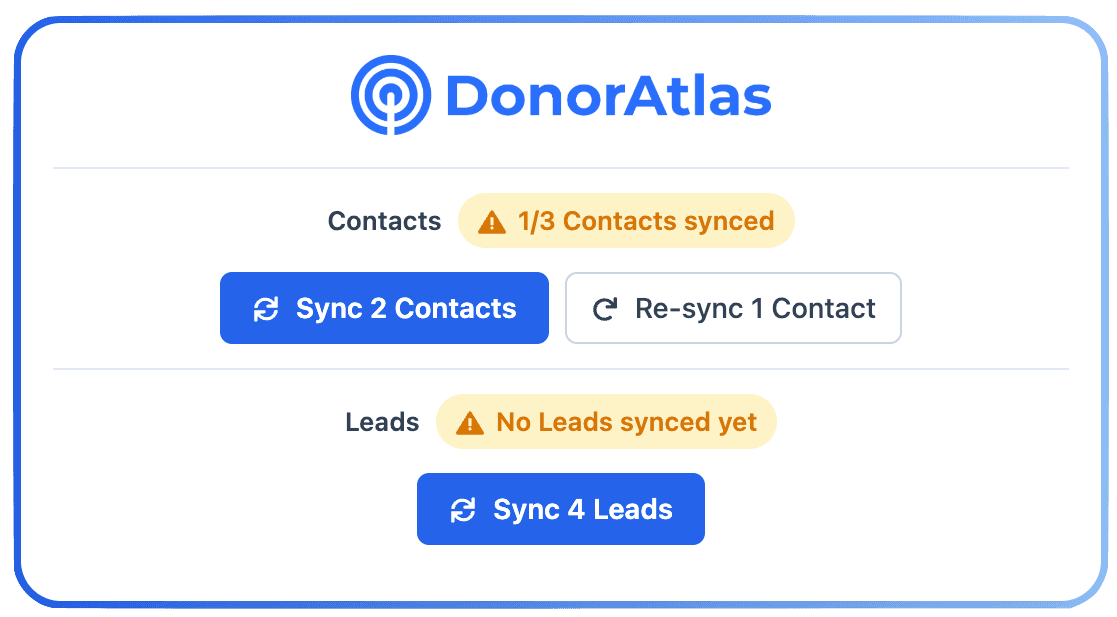
- The DonorAtlas Campaign Sync component shows the current sync status, separated into a Contacts section and a Leads section.
- Click the “Sync” button for Contacts, Leads, or both to sync all unsynced members of that type.
- A toast notification confirms the sync started. The component refreshes to show the updated status.
Understanding the Campaign Sync Component
The component gives you a quick overview of where things stand:
- “All X Contacts synced” (green badge) — Every Contact in the campaign has been synced.
- “X/Y Contacts synced” (yellow badge) — Some Contacts have been synced but not all. A “Sync Z Contacts” button appears to sync the remaining records.
- “No Contacts synced yet” (gray badge) — No Contacts have been synced. A “Sync X Contacts” button appears.
- If any records are currently being processed, you'll see a count like “(3 processing)” appended to the status.
The same layout applies to the Leads section.
Resyncing Campaign Members
All synced records are automatically re-synced periodically by DonorAtlas to ensure all information is up-to-date in Salesforce. If some or all campaign members were previously synced and you want to refresh their data now, click the “Re-sync” button. This sends a background refresh request. A toast notification confirms the resync started.
7. Understanding Your Donor Data
When a Contact, Lead, or Account (Person Account) is successfully synced, DonorAtlas creates a Donor record linked to it. The Donor record contains the enriched research data, and it has child records that provide additional data like education, work, donations, and more. All users (Admin, User, and Viewer) can explore this data.
Viewing the Donor Record
You can get to the Donor record in two ways:
- From the sync component: After a successful sync, the DonorAtlas component on the record page shows a “View Record” button that takes you directly to the Donor record.
- From the related list: On the Contact, Lead, or Account page, look for the Donor related list. Click the Donor record to open it.
What's in the Donor Record
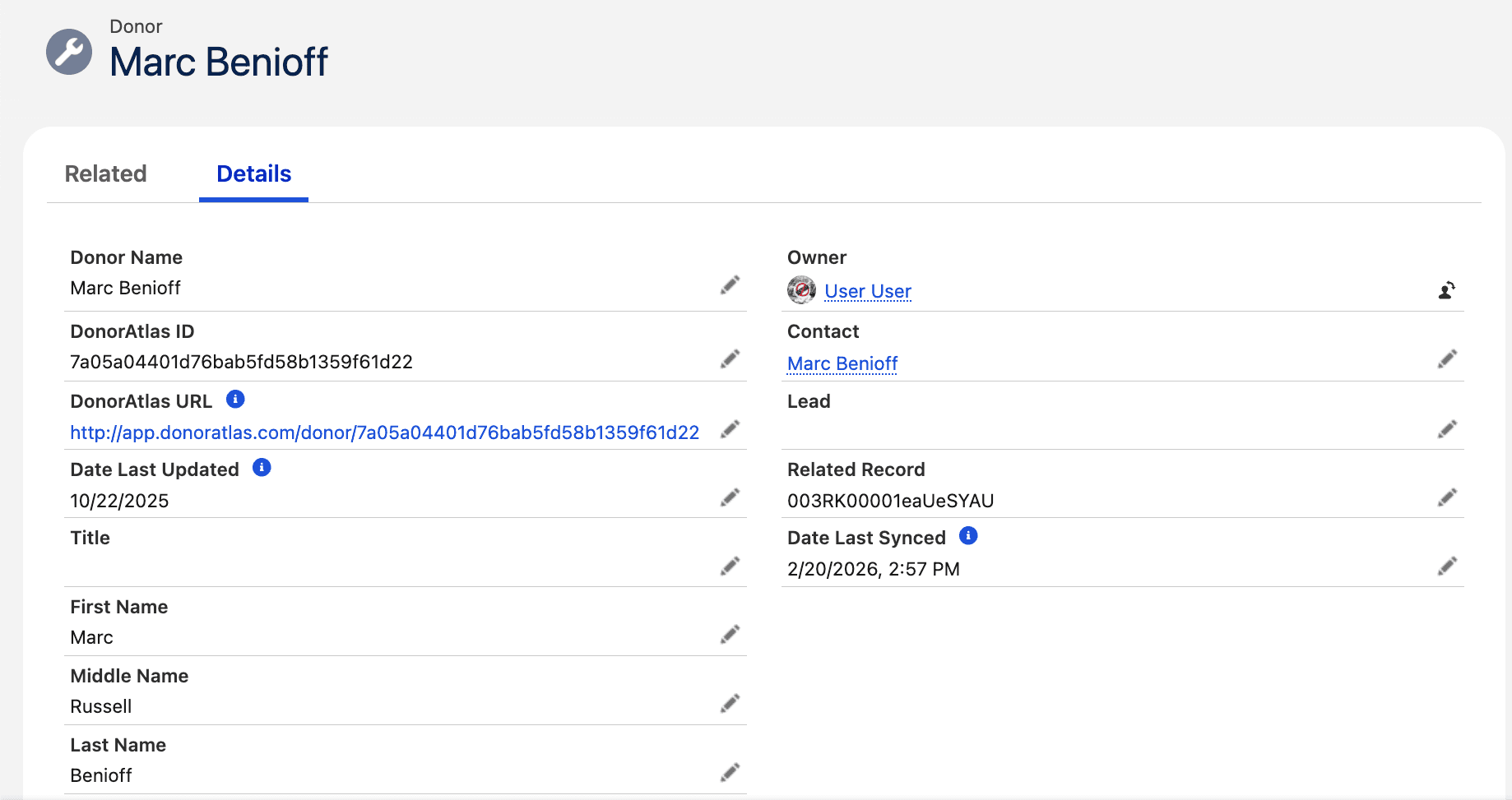
The Donor record contains demographics, address information, net worth estimates, giving history summaries, giving capacity scores, top issues, and links to the full profile on the DonorAtlas platform. It also includes:
- Bio — A biographical summary of the donor, sourced from DonorAtlas research.
- Sites — Links to the donor's online presence (LinkedIn, personal websites, etc.).
- Political Giving Breakdown — Ten currency fields showing political donation totals by party (Democrats, Republicans, Libertarians, Green Party, Independents, No Party) and by level (Presidential, Congressional, State & Local), plus the overall political total amount.
Donations and board affiliations are no longer capped — DonorAtlas now syncs all available records for each donor, giving you a complete picture.
For a complete list of every field and its description, see the Field-Level Data Dictionary in the Technical Administration Guide.
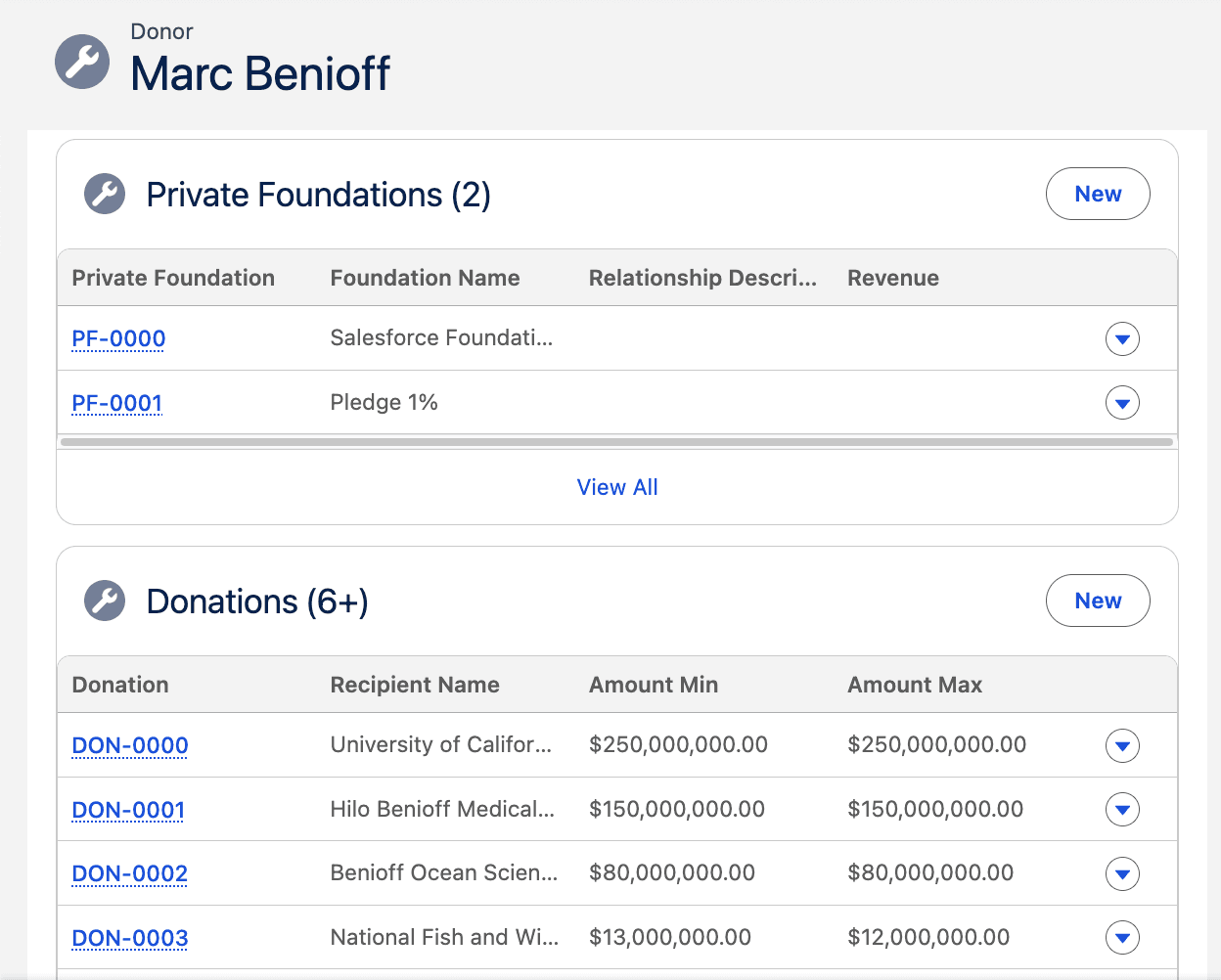
Child Records
Below the main Donor record, you'll find related lists with detailed breakdowns:
| Child Record | What It Contains |
|---|---|
| Donations | Individual nonprofit gifts — recipient organization, amount range, and year(s) |
| Education | Schools attended — institution name, degree, graduation year |
| Work Experience | Employment history — company name, job title, dates |
| Board Affiliations | Board memberships — organization name, role/title, years of service |
| Private Foundations | Foundation relationships — foundation name, relationship description, assets, revenue |
Viewing the Full Profile on DonorAtlas
For the most comprehensive view of a donor, click the DonorAtlas URL on the Donor record (or the “Open Profile” link in the sync component). This opens the full donor profile on the DonorAtlas platform, where you can explore additional data, charts, and insights beyond what is stored in Salesforce.
Donor Record Page
DonorAtlas includes a pre-built Donor Record Page that provides a polished layout for viewing donor data. The page includes:
- A header component with a gradient bar showing “Open Profile” and “Re-sync” buttons for quick access to the full DonorAtlas profile and one-click data refresh.
- A detail panel on the left showing all Donor fields organized into logical sections (Personal Info, Bio & Online Presence, Financial, and Political Giving).
- Related lists on the right sidebar showing Education, Work Experience, Board Affiliations, Private Foundations, and Donations inline — no need to navigate to a separate “Related” tab.
To activate the Donor Record Page as the default for your org:
- Navigate to any Donor record.
- Click the Gear icon → Edit Page.
- At the top of the Lightning App Builder, find the Pages dropdown.
- Select Donor Record Page.
- Click Activation in the top right.
- Activate for the users or profiles you'd like.
8. Resyncing and Unsyncing Records
Resync
Resync refreshes the data for a previously synced record. As a reminder, this happens automatically by DonorAtlas periodically. You can do it manually at any time as well. DonorAtlas re-fetches the latest information from its database and updates the Donor record and all child records in Salesforce.
When to use it: Before an important meeting, when you want the most current data, or when the “Date Last Updated” on the Donor record is older than expected.
How to resync: Navigate to the record page and click “Resync” in the DonorAtlas component. The component briefly shows a processing state, then refreshes with the updated data.
Cost: Resyncing is free — it does not use any DonorAtlas import credits.
Unsync
Unsync removes the Donor record and all its child records from Salesforce, and disconnects the record from DonorAtlas.
When to use it: The match is incorrect (DonorAtlas matched the wrong person), you want to remove the donor data from Salesforce, or you want to retry a sync from scratch.
How to unsync: Navigate to the record page and click “Unsync” in the DonorAtlas component. The Donor record and all related child records are deleted from Salesforce, and the component returns to the “Not synced” state.
Cost: Unsyncing is free. If you sync the same record again afterward, it will use one import credit (since it's being treated as a new sync).
9. Automatic Re-sync
DonorAtlas automatically re-syncs your records on a nightly schedule so your donor data stays fresh without any manual effort. By default, records are refreshed every 7 days, but your team can request a different interval from DonorAtlas support.
How It Works
Every night, DonorAtlas checks which synced records are due for a refresh based on your team's configured sync frequency. Records whose data is older than the threshold are automatically re-synced with the latest information from the DonorAtlas database. This updates the Donor record and all child records (Donations, Education, Work Experience, Board Affiliations, and Private Foundations) in Salesforce.
Automatic re-syncs are free — they do not consume any DonorAtlas import credits.
Viewing Sync History
You can view the history of automatic re-sync runs on the DonorAtlas Configure page in Salesforce. The Automatic Re-sync History section shows a table with the following columns for each run:
| Column | Description |
|---|---|
| Date | When the auto-resync run started |
| Status | Current status: Running, Completed, or Failed |
| Records | Total number of records in the run |
| Succeeded | Number of records successfully re-synced |
| Failed | Number of records that failed to re-sync |
10. Building Reports with DonorAtlas Data
One of the most powerful features of the integration is the ability to report on DonorAtlas data using Salesforce's built-in reporting tools. You can filter, sort, group, and visualize donor intelligence alongside your existing Salesforce data. All users (Admin, User, and Viewer) can build and run reports.
Included Report Types
DonorAtlas ships with four report types that you can use right away:
| Report Type | What It Includes | Best For |
|---|---|---|
| Donors | Donor fields only | Analyzing DonorAtlas data by itself — net worth distributions, giving capacity breakdowns, demographic analysis |
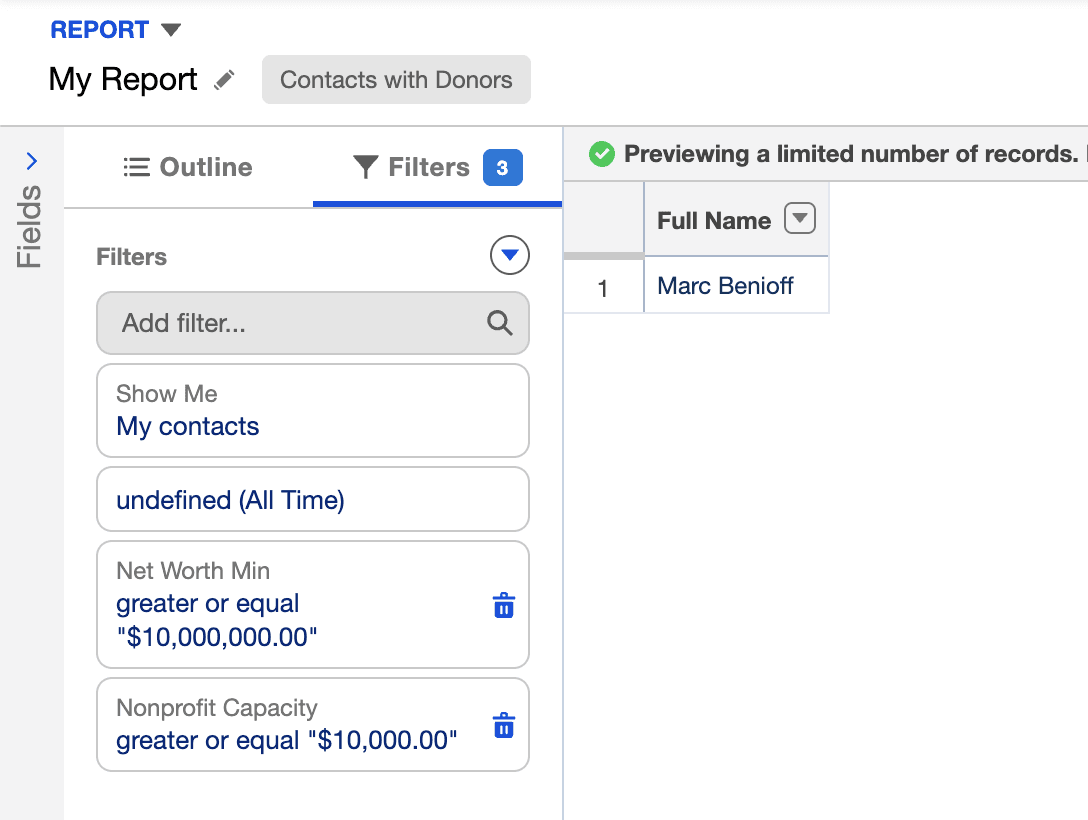
| Contacts with Donors | Contact fields + Donor fields | The most common use case: combining your Contact information with DonorAtlas research data |
| Leads with Donors | Lead fields + Donor fields | Same as above, but for Leads |
| Contacts with Donors with Education | Contact + Donor + Education | Finding alumni of specific institutions, filtering by degree, or analyzing educational background alongside wealth data |
All report types use inner joins, meaning Contacts or Leads without a synced Donor record will not appear in your results.
Running a Report
- Go to the Reports tab and click New Report.
- Search for “Donor” in the report type picker.
- Select the report type that fits your needs (e.g., “Contacts with Donors”).
- Click Start Report.
- Add columns from the available fields. For “Contacts with Donors,” you'll see both Contact fields and Donor fields available.
- Add filters. Some useful Donor filters include:
- Net Worth Min / Net Worth Max — find high-net-worth individuals
- Nonprofit Capacity — identify donors with high giving potential
- State / City — segment by location
- Age — focus on a specific age range
- Click Save & Run.
Example Reports
The package installs three example reports in the DonorAtlas Example Reports folder:
| Report | Description |
|---|---|
| High Net Worth Contacts in NY | Contacts with estimated net worth ≥ $5M located in New York |
| Senior Donors High Nonprofit Capacity | Older donors with high nonprofit giving capacity scores |
| High Net Worth Ohio State Alumni NY | High-net-worth Contacts who attended Ohio State University and are based in New York |
You can clone any of these reports (open the report → Save As) and modify the filters, columns, and groupings to fit your needs.
Creating Custom Report Types
The four included report types cover the most common scenarios, but you can create your own if you need to report on other Donor child objects — such as Donations, Work Experience, Board Affiliations, or Private Foundations. For step-by-step instructions on creating custom report types, see Reports and Report Types in the Technical Administration Guide.
11. Credits and Usage
Some actions in this integration consume DonorAtlas credits.
| Action | Credit Cost |
|---|---|
| Syncing a new record | 1 DonorAtlas import credit |
| Resyncing a previously synced record | Free |
| Unsyncing a record | Free |
| Automatic data refreshes by DonorAtlas | Free |
Only the first sync of a record costs a credit. Everything after that — manual resyncs, automatic refreshes, and unsyncs — is free.
What Happens When Credits Run Out
If you run out of credits during a sync operation, you'll see a message like: “Out of DonorAtlas credits. 150 of 500 records were synced.” Any records synced before credits ran out will have their Donor records created normally. The remaining records won't be synced until credits are available.
To continue syncing, contact DonorAtlas to upgrade your plan!
12. Troubleshooting
For common issues and their resolutions, see the Troubleshooting and FAQ section of the Technical Administration Guide.
If your issue isn't covered there, contact DonorAtlas support — we're happy to help!
13. Glossary
- Account (Person Account)
- A Salesforce record type that combines Account and Contact into a single record representing an individual. Supported by DonorAtlas for syncing, alongside Contacts and Leads. Person Accounts must be enabled in the Salesforce org.
- Contact
- A standard Salesforce object representing a person your organization has a relationship with. One of the three record types (along with Lead and Account) that can be synced with DonorAtlas.
- Donor (Donor Record)
- The custom Salesforce object created by DonorAtlas when a Contact, Lead, or Account is successfully synced. Contains enriched research data including demographics, wealth estimates, and giving history.
- Child Records
- Records attached to a Donor record that provide detailed breakdowns: Donations, Education, Work Experience, Board Affiliations, and Private Foundations. A "Child" record is a Salesforce-specific term.
- Field Mappings
- The configuration that tells DonorAtlas which Salesforce fields to read when matching a record. Configured by admins in the DonorAtlas Configuration tab for each object type (Contact, Lead, Account).
- Lead
- A standard Salesforce object representing a potential prospect. Along with Contact and Account, Leads can be synced with DonorAtlas.
- Match
- The process by which DonorAtlas identifies a person in its database based on the information provided from Salesforce. A successful match results in a Donor record being created.
- No Match
- The outcome when DonorAtlas cannot find a corresponding person in its database. No Donor record is created.
- Permission Set
- A Salesforce security mechanism that controls what a user can access. DonorAtlas includes three: Admin (full access + configuration), User (full access), and Viewer (read-only).
- Report Type
- A Salesforce template that defines which objects and fields are available when building a report. DonorAtlas includes four report types out of the box.
- Resync
- A free operation that refreshes the data for a previously synced record with the latest information from DonorAtlas.
- Sync
- The action of sending a Contact, Lead, or Account to DonorAtlas for matching and data enrichment. The initial sync of a new record costs one import credit.
- Unsync
- A free operation that removes the Donor record and all child records from Salesforce and disconnects the record from DonorAtlas.
Have a question that isn't covered here? Contact DonorAtlas support — we're happy to help!